Servo 1Q increase · A decrease
⚙ MicroPython
▶ Console
📖 Reference
Generated MicroPython
# Add blocks to generate code
# TITAN Console
# Connect a robot to begin
🖥️ Using the IDE
File
Help
File & Help Menus
The File and Help buttons sit in the header toolbar. File — New program, Load Code (opens .xml block files or .py Python files), Save Program (saves .xml or .py depending on tab mode), Save Python (saves generated code from a blocks tab), Examples (opens the examples browser), Rename Bluetooth Device, Firmware Update. Help — opens the Block Reference or Building Tips page.
+ New Tab
program 1 A-A ×
program 2 B-C ×
Program Tabs
The tab bar sits above the workspace. Each tab is a separate program. Click a tab to switch — your work in other tabs is preserved. Double-click a tab name to rename it. Click + New Tab to choose a program type (up to 16 tabs). Click × to close a tab — unsaved changes trigger a warning first. Closing the last tab clears it to blank instead of removing it.
Each tab has a small badge: BLK for a Blocks tab and PY for a Python tab. Both tab types share the same Run, Upload, and Console features.
A small orange dot on a tab means it has unsaved changes. Once a tab has been uploaded to the controller, a colored slot pill appears showing the group letter and slot letter — for example, a red pill reading A-A means Group A (Red), Slot A; a green pill reading B-C means Group B (Green), Slot C. Groups: A=Red, B=Green, C=Blue, D=Yellow. This pill updates when you upload to a different slot and is saved into the file so it restores correctly when you reload the program.
Each tab has a small badge: BLK for a Blocks tab and PY for a Python tab. Both tab types share the same Run, Upload, and Console features.
A small orange dot on a tab means it has unsaved changes. Once a tab has been uploaded to the controller, a colored slot pill appears showing the group letter and slot letter — for example, a red pill reading A-A means Group A (Red), Slot A; a green pill reading B-C means Group B (Green), Slot C. Groups: A=Red, B=Green, C=Blue, D=Yellow. This pill updates when you upload to a different slot and is saved into the file so it restores correctly when you reload the program.
🔗 Connect
Connect
Opens the connection dialog. Choose Bluetooth (BLE) to open the TITAN connection assistant. Review the checklist, select Choose TITAN, and then choose your TITAN- controller in the secure browser or Bluefy device window. Choose USB / Serial to connect via a data cable. Once connected the button turns green. Click it again to disconnect. After connecting, the IDE queries the controller and marks occupied slots in the dropdown. If Bluetooth drops unexpectedly (e.g. hard reset), the app will automatically attempt to reconnect.
A
B
C
D
⬆ Upload to Slot
Slot Selector & Upload
The controller stores up to 16 programs in 4 color groups (Red, Green, Blue, Yellow) with 4 slots each (A, B, C, D). Click the slot button to open the slot picker — occupied slots show a green ●. A trash icon appears on occupied slots to delete them from the controller. Each tab remembers which slot it was last uploaded to and restores that slot when you switch to it.
Click Upload to Slot to compile and send the active tab's program to the controller — the launcher restarts automatically and a colored slot pill (e.g. A-B = Group A Red, Slot B) appears on the tab. If the target slot is already occupied by another program, a warning appears before overwriting.
Tip: Upload first, then use Save Blocks — the slot information is embedded in the saved file so when you reload the program later it knows exactly which slot it belongs to.
Click Upload to Slot to compile and send the active tab's program to the controller — the launcher restarts automatically and a colored slot pill (e.g. A-B = Group A Red, Slot B) appears on the tab. If the target slot is already occupied by another program, a warning appears before overwriting.
Tip: Upload first, then use Save Blocks — the slot information is embedded in the saved file so when you reload the program later it knows exactly which slot it belongs to.
● A Red
● B Green
● C Blue
● D Yellow
How the Program Launcher Works
When the controller powers on it runs the built-in launcher — no computer needed. No app or cable required to run stored programs. Navigation is two-phase:
Group picker phase: All four pixels light up simultaneously in their group colors — Pixel A = Red, B = Green, C = Blue, D = Yellow. Each letter and color identify the same group, so color-blind students can always use the letter instead. Press A, B, C, or D to enter that group (error buzz if the group has no programs).
Slot selection phase: Occupied slots light solid in the group's color; empty slots stay off. Press A, B, C, or D to select an occupied slot — the pixel blinks rapidly to confirm your selection. Press Select to run the program. Press Select without selecting a slot to return to the group picker.
When a program finishes (Code End block), the launcher returns to the group picker automatically. A full slot map of all 16 slots is printed to the console at startup.
Group picker phase: All four pixels light up simultaneously in their group colors — Pixel A = Red, B = Green, C = Blue, D = Yellow. Each letter and color identify the same group, so color-blind students can always use the letter instead. Press A, B, C, or D to enter that group (error buzz if the group has no programs).
Slot selection phase: Occupied slots light solid in the group's color; empty slots stay off. Press A, B, C, or D to select an occupied slot — the pixel blinks rapidly to confirm your selection. Press Select to run the program. Press Select without selecting a slot to return to the group picker.
When a program finishes (Code End block), the launcher returns to the group picker automatically. A full slot map of all 16 slots is printed to the console at startup.
■ Stop / Reset
Stop / Reset
Immediately stops any running program, turns off all motors, sound, and pixels, and restarts the launcher. Use this any time the robot behaves unexpectedly or you need to return to the launcher without waiting for the program to finish. Works over both Bluetooth and USB.
▶ Console
✕ Clear
Console
Shows everything printed by the controller — connection messages, the slot map at startup, output from Print blocks, and errors. Use Print blocks to display sensor readings or variable values while your program runs. ✕ Clear wipes the output. Type raw MicroPython commands in the input bar at the bottom and press Send or Enter to run them directly on the controller.
⚙ MicroPython
MicroPython Tab
Shows the MicroPython code your blocks generate, updated live. You don't need to edit this — it shows exactly what gets uploaded. It's a great way to see how blocks map to real code. This tab is hidden when a Python tab is active, since the editor itself is the code.
⌨ Python Editor
Python Editor Mode
When creating a new tab, choose Python Coding to open a full MicroPython code editor with syntax highlighting, line numbers, bracket matching, and auto-indent (Dracula theme). Write code directly using
titan.* functions — same functions that Blockly generates. File → Save Program saves a .py file; Load Code opens .py files back into a Python tab. Run, Upload, and the Console work identically to Blocks mode.🌾 Control
🌾 Code Begin
Code Begin
Initializes the TITAN Controller and waits for the Select button to be pressed before continuing. Always use this as the first block in every program. The controller plays a short tone and lights up when ready.
🌾 Code End
Code End
Stops the program cleanly — turns off motors, sound, and pixels — and returns to the launcher. Always use this as the last block in your program.
⏱ Wait (ms)
1000
Wait
Pauses the program for the specified number of seconds. Range: any positive number. Accepts decimals — e.g. 0.5 for half a second.
🖨 Print to Console
value
Print to Console
Sends a value to the Console tab. Use this to display sensor readings, variable values, or status messages while your program runs. Very useful for debugging.
🤖 Movement
🤖 Robot Config Left Wheel:
1 ▼
Right Wheel: 2 ▼
Wheel Diameter 80
mm Wheelbase 185
mmSet Robot Configuration (2WD)
Sets up a 2-wheel drive robot's motor ports and geometry. Call once at program start before any movement blocks. Left/Right — assign motor channels (default: Left=1, Right=2). Wheel Diameter — diameter in mm (Ag robot: 80mm). Wheelbase — distance between wheels in mm (Ag robot: ~185mm).
🤖 4WD Config Left1:
1▼
Left2: 2▼
Right1: 3▼
Right2: 4▼
Diam 80
mm WB 185
mmSet Robot Configuration (4WD)
Sets up a 4-wheel drive robot. Assigns two motors per side — Left1/Left2 and Right1/Right2 (default: 1,2,3,4). All movement blocks then drive all four motors together. Same Wheel Diameter and Wheelbase parameters as 2WD config. Use when your robot has two motors on each side chained together.
🤖 Set Movement Speed to
50
%Set Movement Speed
Sets the default speed for all Move and Start blocks. Range 0–100%. Set once before your first movement command. Does not affect individual motor blocks.
🤖 Move
Forward ▼
for 10
cm ▼
Wait Yes ▼
Move For Distance
Moves the robot forward or backward a specific distance then stops. Choose cm or rotations. When Wait is Yes the next block won't run until the move is complete. Requires Robot Config to be set first.
🤖 Start Moving
Forward ▼
Start Moving
Starts moving continuously in the chosen direction. The robot keeps moving until a Stop Moving block runs. Use with a Wait block to control how long it drives.
🤖 Move steering:
0
for 20
cm ▼
Wait Yes ▼
Move with Steering
Moves forward with differential steering. Steering 0 = straight. +99 curves right, −99 curves left. +100/−100 pivots on the spot. Distance is measured along the outer (faster) wheel path.
🤖 Start Moving steering:
0
Start Moving with Steering
Starts moving continuously with differential steering. Use Stop Moving to stop. Same steering scale as Move with Steering.
🤖 Turn
Right ▼
90
degrees Wait Yes ▼
Turn Degrees
Spins the robot in place by a number of degrees. Accuracy depends on the Wheelbase in Robot Config being correct for your robot. Both wheels spin in opposite directions for a tight pivot turn.
🤖 Stop Moving
Stop Moving
Immediately stops both movement motors. Use after any Start Moving or Start Moving with Steering block.
🧭 Gyro Turn
Right▼
90
degrees IMU port 1
Gyro Turn ⚠ Optional Add-On
Turns the robot an exact number of degrees using the gyro sensor — accurate even when wheels slip on dusty or slick competition surfaces. Direction: Right or Left. IMU port: sensor port the Grove IMU is plugged into (1–5). Uses the configured movement motors (2WD or 4WD). Requires: Grove 6-Axis IMU Sensor, SKU 105020012 — not included in the standard AgRobotics kit.
🧭 Reset Gyro Angle IMU port
1
Reset Gyro Angle ⚠ Optional Add-On
Zeroes the gyro angle accumulator for the given port. Use before a turn to start measuring from the current heading. Requires the Grove 6-Axis IMU Sensor (SKU 105020012).
🧭 Gyro Angle IMU port
1
Gyro Angle ⚠ Optional Add-On
Returns total degrees rotated since the last Reset Gyro Angle. Positive = clockwise (right turn), negative = counterclockwise (left turn). Use in a Repeat While loop to monitor heading during manual movement. Requires the Grove 6-Axis IMU Sensor (SKU 105020012).
⚙️ Motors
⚙ Motor
1
Speed % 75
Run Motor
Sets an individual motor speed. Range: -100 (full reverse) to 100 (full forward), 0 = stop. Motor ports: 1–4. Use 1234 to set all motors to the same speed at once.
⚙ Motor
1
Rotations 3
at Speed % 60
Run Motor (Rotations)
Runs a motor a specific number of wheel rotations at a set speed then stops. Rotations: any positive number. Speed: -100 to 100. Motor port: 1–4. Useful for precise distance control.
⚙ Stop Motor
1
Brake ▼
Motor Stop
Stops a motor. Brake holds position firmly. Coast lets it spin down freely. Motor port: 1–4. Use 1234 to stop all motors at once.
⚙ Motor
1
Invert Yes ▼
Motor Invert
Reverses the direction of a motor. Motor port: 1–4. Useful when a motor is physically mounted in the opposite direction. Use 1234 to invert all motors.
Encoder Count ch
1
Encoder Count
Returns the current encoder count for a motor channel. Channel: 1–4. Counts accumulate until reset. Useful for measuring distance traveled.
⚙ Reset Encoder
1
Reset Encoder
Resets the encoder count to zero. Channel: 1–4. Use 1234 to reset all encoders at once. Always reset before measuring a new distance.
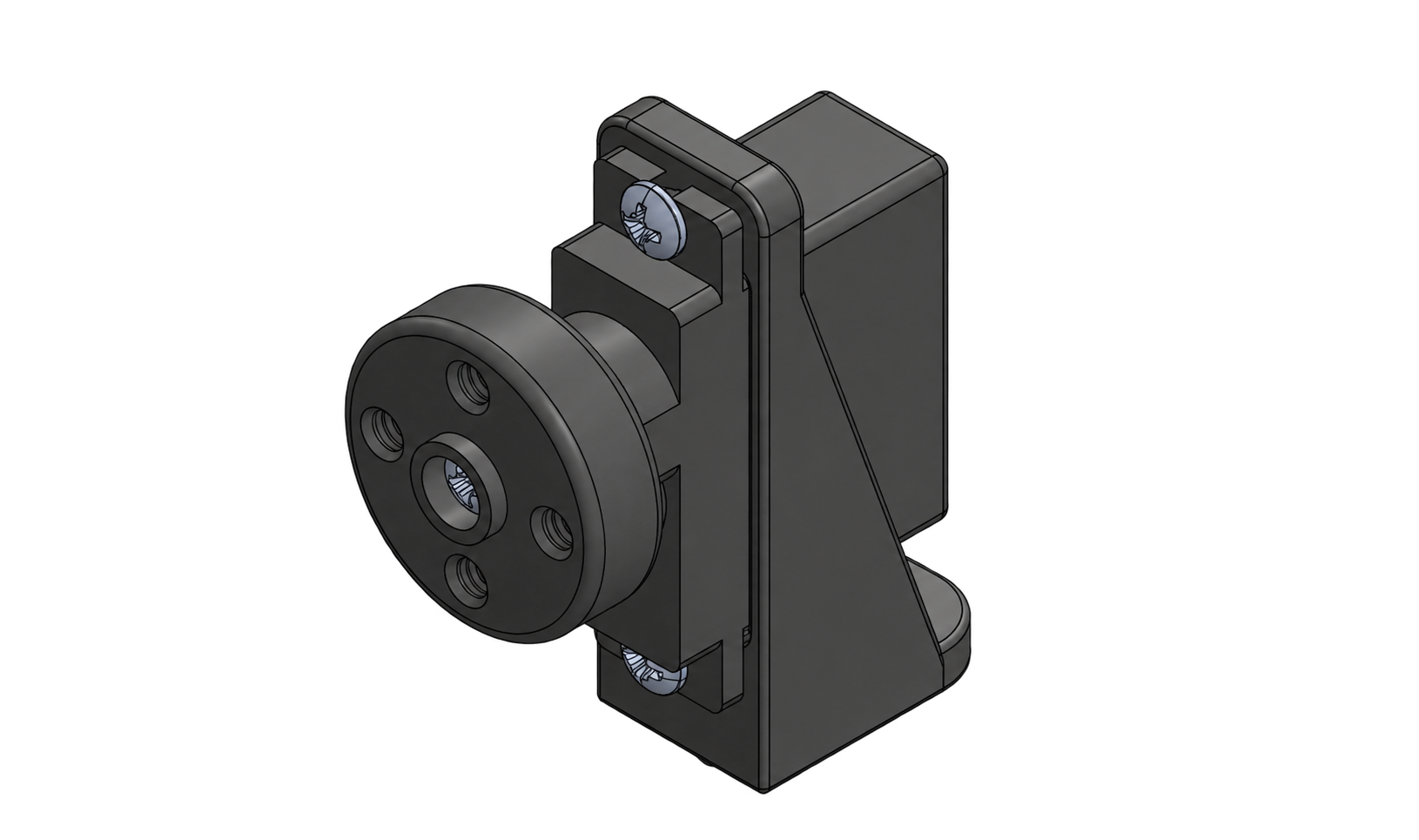
Servos
🔩 Servo
1
Position ° 90
Move Servo
Moves a servo to a specific angle. Range: 0–180°. 90° is typically center. Servo ports: 1–4. Use 1234 to move all servos to the same angle simultaneously.
🔩 Servo
1
Speed % 50
Set Servo Speed
Sets how quickly a positional servo horn travels from its current angle to a new angle. Range: 0% (no movement) to 100% (maximum speed). Servo ports: 1–4.
🔩 Invert Servo
1
Yes ▼
Invert Servo
Reverses the direction of a servo. Servo ports: 1–4. Useful when a servo is physically mounted in the opposite orientation.
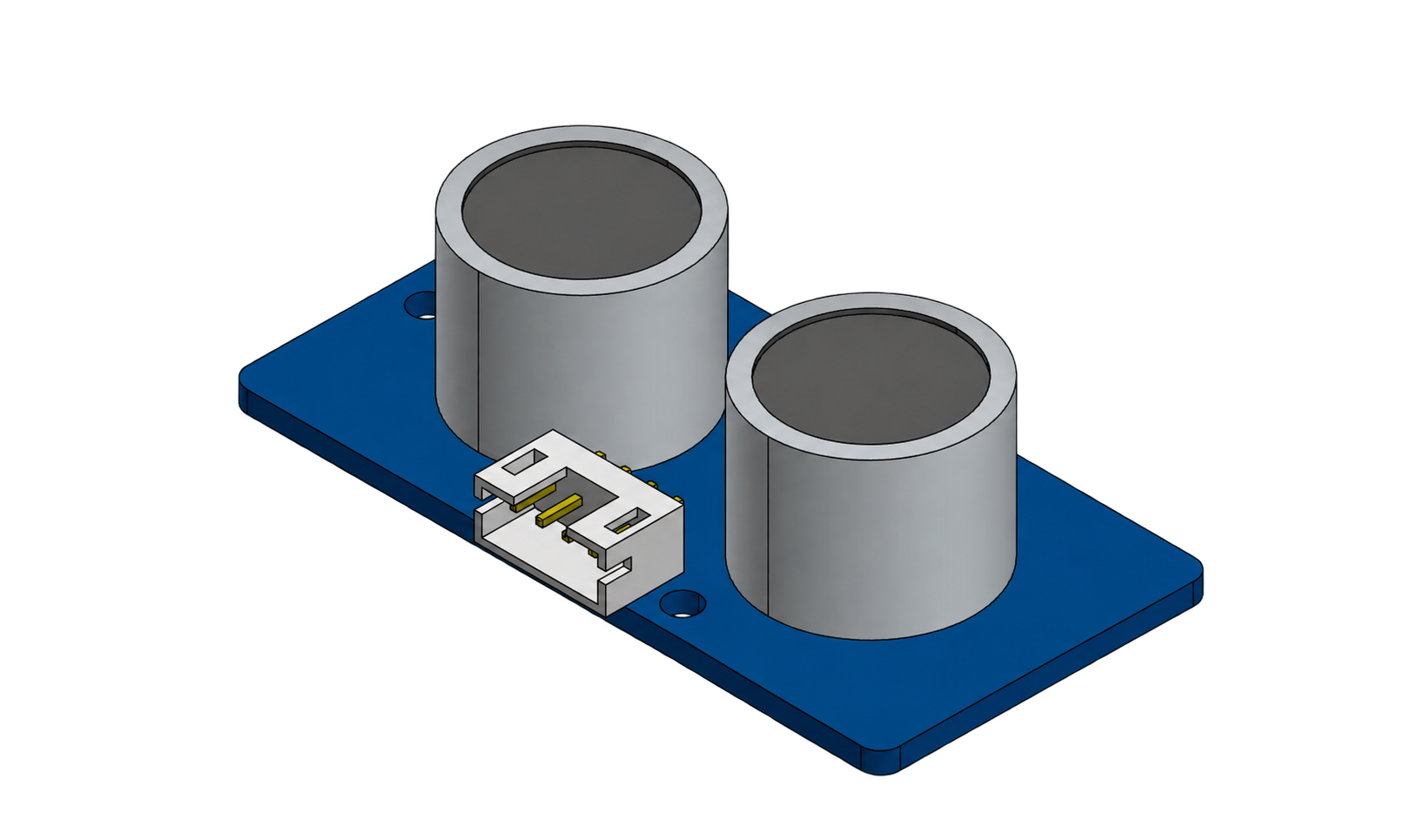
Sensors
📡 Sonic (cm) port
1
Ultrasonic Distance
Returns distance in centimeters using ultrasonic sound. Range: 2–350 cm. Port: 1–5. More forgiving of surface angle than TOF.
📡 TOF (mm) port
1
Time-of-Flight Distance
Returns distance in millimeters using a laser. Range: 30–1000 mm. Port: 1–5. Averages 3 readings. The sensor is sensitive to angle — point it perpendicular to the target surface for best accuracy.
📡 Line Sensor port
1
Line Sensor
Returns 0 for a black or nonreflective surface and 1 for a white or reflective surface. The sensor shines its own infrared light and measures the reflection. Port: 1–5. Use for line following or boundary detection.
📡 Color Name: port
1
threshold 0.07
Color Name
Returns the detected color name: red, green, blue, white, black, or none. Port: 1–5. Use in an If block — e.g. Color Name = "red". Sensitivity: Low (1) = detects only obvious saturated colors, Medium (5) = default, High (10) = detects subtle colors. Start with Medium and adjust if needed.
📡 Reflected Light: port
1
Reflected Light
Returns reflected light intensity. Range: 0–100. Port: 1–5. High = bright/white surface, Low = dark/black surface. Use for line following.
📡 Reflected Light: port
1
is greater than ▼
50
%Is Reflected Light
Returns True if reflected light meets the selected condition — greater than, less than, or equal to — the threshold (0–100%). Port: 1–5. Use directly in an If block for line following decisions.
📡 Color Hue: port
1
Color Hue
Returns the hue angle (0–360°) of the detected color, regardless of shade or brightness. Returns -1 for black, white, or gray surfaces. Port: 1–5. Color card training: hold a card up, store the hue in a variable, then compare future readings using abs(hue - stored_hue) < 30. Works across different shades of the same color.
📡 Color Value: port
1
Color Value
Returns an integer color index: 0=black, 1=red, 2=green, 3=blue, 4=white, -1=none. Port: 1–5. Sensitivity: Low (1) = detects only obvious saturated colors, Medium (5) = default, High (10) = detects subtle colors. Store in a variable to compare colors later — e.g. if Color Value = 1: detected red.
🌡 Temperature
°C ▼
port 1
Temperature
Returns temperature from a DHT11 sensor. Range: -40 to 80°C / -40 to 176°F. Port: 1–5.
📡 Humidity port
1
Humidity
Returns relative humidity from a DHT11 sensor. Range: 0–100%. Port: 1–5.
🎛 Rotary Angle port
1
Rotary Sensor
Returns rotary knob angle. Range: 0–300°. Port: 1–4 only (port 5 does not support analog input). Good for manual input or position sensing.
📡 Analog (0-4095) port
1
Analog Input
Reads raw analog voltage. Range: 0–4095. Port: 1–4 only (port 5 does not support analog input). Use for sensors without a dedicated block such as soil moisture probes.
📡 Digital (0/1) port
1
Digital Input
Reads a digital signal. Returns: 0 or 1. Port: 1–5. Use for switches, bump sensors, or any on/off sensor.
Buttons
🎮 Button
A ▼
pressed ?Button Pressed
Returns True when the selected button is being pressed, False otherwise. Buttons: Select, A, B, C, D. Use in an If block or a Repeat While loop to respond to button presses during a running program.
💡 Pixels
💡 Pixel
ABCD ▼
R 0
G 200
B 50
Pixel Color (RGB)
Sets a NeoPixel color using Red, Green, Blue values. Range: 0–255 per channel. Pixel: A, B, C, D, or ABCD for all four.
💡 Pixel
A ▼
Color Brightness 75
%Pixel Color (Picker)
Sets a NeoPixel using the built-in color picker. Brightness range: 0–100%. Pixel: A, B, C, D, or ABCD for all four. Click the colored square to open the color wheel.
💡 Pixel Off
ABCD ▼
Pixel Off
Turns off a NeoPixel. Pixel: A, B, C, D, or ABCD to turn off all four at once.
💡 Blink Pixel
A ▼
Color 3
timesPixel Blink
Blinks a NeoPixel a set number of times in the chosen color. Times: any positive integer. Pixel: A, B, C, D, or ABCD for all four. Good for signaling completed tasks or detected objects.
💡 Pixel
A ▼
color from sensor port 1
Brightness % 75
Pixel Color from Sensor
Sets a NeoPixel to the color currently seen by the color sensor. Brightness range: 0–100%. Port: 1–5. Pixel: A, B, C, D, or ABCD. Use in a loop to continuously mirror the sensor color.
💡 Pixel Animation
rainbow ▼
for 3
secPixel Animation
Plays a built-in light animation for a set duration. Options: rainbow, comet, chase, fade, sparkle, colorcycle, rainbow comet, rainbow chase, rainbow sparkle.
🔊 Sound
🔊 Tone (Hz)
440
for (sec) 0.5
Tone
Plays a tone at a specific frequency. Frequency range: 31–20000 Hz. Duration: any positive number in seconds. 0 = continuous until next sound block. 440 Hz = A4, 262 Hz = C4, 523 Hz = C5.
🔊 Play Note
C4 ▼
for (sec) 0.5
Play Note
Plays a musical note by name for a set duration. Range: B0 (31 Hz) through D#8 (4978 Hz), plus OFF to silence. Duration: any positive number in seconds.
🔊 Sound Effect
Correct ▼
Sound Effect
Plays one of 15 built-in sound effects including Correct, Incorrect, Siren, Whistle, Happy Birthday, Super Mario, Close Encounters, and more.
🔊 Sound Off
Sound Off
Immediately silences the buzzer. Use after a Tone block with 0 duration to stop continuous sounds.
🔁 Loops
🔁 forever
Forever
Repeats the blocks inside it continuously — exactly like
while True: in Python. Use this as your main program loop when you want the robot to keep running until it is stopped or reset. Always place sensor reads, decisions, and actions inside a Forever block for continuous operation.repeat
10
timesRepeat
Runs all the blocks inside it a set number of times. Drag other blocks inside the loop to repeat them.
repeat while
true ▼
Repeat While / Until
Keeps repeating the blocks inside it while (or until) a condition is true. Use with sensor or button blocks in the condition slot to keep looping until something happens.
🔁 break out of loop
Break
Immediately exits the current loop and continues with the blocks after it. Use inside a Repeat or Repeat While loop to stop early when a condition is met — e.g. stop searching once a color is detected. Generates
break in MicroPython.❓ Logic
if
condition
doIf / If-Else
Runs blocks inside only when a condition is true. The if-else version also runs a different set of blocks when the condition is false. Click the gear icon on the block to add else-if branches.
A
= B
Compare
Compares two values and returns true or false. Options: = (equal), ≠ (not equal), < (less than), > (greater than), ≤, ≥. Place inside an If block condition slot.
A
and B
Logic Operation
"and" is true only if both values are true. "or" is true if either one is true. "not" inverts a true/false value. Use to check multiple conditions at once.
n
is between 0
and 100
Is Between
Returns True if the value falls between the low and high values (inclusive). Use in an If block for range checks — e.g. hue is between 100 and 140 for green detection, or distance is between 10 and 50 for proximity zones.
🔢 Operators
0
Number
A number value block. Click the number to type any value. Place in any block input that expects a number.
A
+ B
Arithmetic
Performs a math operation on two numbers: + (add) − (subtract) × (multiply) ÷ (divide) ^ (power). The result plugs into any number input.
round
n
Round
Round a number to the nearest integer. Options: round (nearest), round up (ceiling — always rounds up), round down (floor — always rounds down, same as truncating). Useful for getting clean integer values from sensor readings.
10
mod 3
Remainder (Modulo)
Returns the remainder after dividing the first number by the second. Example: 10 mod 3 = 1. Useful for cycling through values — e.g. a counter that resets after reaching a maximum.
constrain
n
low 0
high 100
Constrain
Clamps a number within a minimum and maximum range. If the value is below the low, it returns the low. If above the high, it returns the high. Useful for keeping motor speeds or sensor values within safe limits.
π
Pi (π)
Returns the value of π (3.14159...). Use in calculations involving circles — e.g. wheel circumference = π × diameter. Can be plugged into any number input.
random integer from
1
to 10
Random Integer
Returns a random whole number between the two values (inclusive). Useful for randomized robot behaviors, random tones, or adding unpredictability to programs.
Map
x
from low 0
high 1000
to low 0
high 100
Map
Scales a value from one range to another proportionally. Example: map a TOF sensor reading (30–1000 mm) to a motor speed (0–100%). The value is rescaled so that the input low maps to the output low and input high maps to output high.
📝 Variables
set
myVar
to 0
Set Variable
Creates or updates a variable with a value. Click "Create variable" in the Variables category to name it, then use Set to give it a value. Variables can hold numbers, text, or true/false values.
change
myVar
by 1
Change Variable
Adds a number to the current value of a variable. Use to count up, count down, or accumulate a total. Use a negative number to count down (e.g. −1).
⚠ Reserved Words
Avoid Python Reserved Words
Do not use Python keywords as variable names. Words like
try, for, if, while, return, import, class, def, True, False, and None are part of the MicroPython language. If you use one, Blockly will automatically rename it by adding a number (e.g. try becomes try2). Choose descriptive names like counter, distance, or speed instead.🔧 Functions
to
myFunction
Define Function
Creates a reusable group of blocks with a name you choose. Drag blocks inside the definition. Call it by name anywhere in your program to run those blocks. Great for actions you repeat multiple times — define once, use many times.
🐍 Imports & Setup
import titanimport timeRequired Imports
Every TITAN program starts with these two lines. Optional:
import math, import random.⚙️ Control
titan.Begin()titan.End()Begin / End
Begin() — initialize, wait for Select. Always first.End() — stop motors, return to launcher. Always last.🚗 Movement
setMovementMotors2WD(left, right)setMovementMotors4WD(l1,l2,r1,r2)setMovementSpeed(speed)setMovementWheelDiameter(mm)setMovementWheelbase(mm)Movement Config
Call once at start. Motor ports 1–4. Speed 0–100%. Diameter and wheelbase in mm.
moveForDistance(dist, unit, wait)moveBackDistance(dist, unit, wait)startMoving(direction)stopMoving()Drive
unit:
'cm' or 'rotations'. direction: 'forward'/'backward'.turnDegrees(dir, degrees, wait)imuTurn(dir, degrees, port)startMovingWithSteering(steer)moveWithSteering(steer,dist,unit)Turns & Steering
dir:
'right'/'left'. Steering −100 to +100. imuTurn uses Grove IMU on sensor port.⚡ Motors & Encoders
setMotorSpeed(motor, speed)setMotorSpeeds(s1,s2,s3,s4)setMotorStop(motor, mode)setMotorInvert(motor, True)setMotorTarget(motor, speed, counts)setWheelRotations(motor, rot, speed)waitForMotor(motor)Motor Control
motor: 1–4 or 1234 (all). speed: −100 to 100%. mode:
'brake'/'coast'. 2200 counts/rev.getEncoderCount(encoder)resetEncoder(encoder)getMotorBusy(motor)Encoders
encoder: 1–4 or 1234.
getMotorBusy → True while running to target.🔧 Servos
setServoPosition(servo, angle)setServoPositions(p1,p2,p3,p4)setServoSpeed(servo, speed)setServoInvert(servo, True)getServoPosition(servo)Servo Control
servo: 1–4 or 1234. angle: 0–180°. speed: 0–100.
📡 Sensors
getTOFSensor(port, samples)getSonicSensor(port)getLineSensor(port)Distance & Line
TOF → mm (30–1000). Sonic → cm (2–350). Line → 0 (light) or 1 (dark).
getColorName(port)getColorSensorIsColor(port,color)getColorRGB(port)getColorHex(port)getReflectedLight(port)isReflectedLight(port,cmp,thresh)getColorHue(port)getColorValue(port)Color (TCS34725)
Name →
'red','green','blue','white','black','none'. RGB → (r,g,b). Reflected → 0–100.getTHSensor(port, measure, unit)getRotarySensor(port)resetIMUAngle(port)getIMUAngle(port)Other Sensors
TH:
'temp'/'humid', 'c'/'f'. Rotary → 0–300. IMU → ° since reset.🔘 Buttons
getButtonStatus(button)Button Status
Returns True when pressed. button:
'select', 'a', 'b', 'c', 'd'.💡 Pixels
setPixelColor(pixel, color, bright)setPixelColorRGB(pixel, r, g, b)setPixelOff(pixel)setPixelBlink(pixel, color, loops)setPixelAnimation(name, duration)NeoPixels (A B C D / ABCD)
color: hex, tuple, or constant (RED, BLUE…). bright: 0–100%. Animations:
'rainbow', 'comet', 'chase', 'fade', 'sparkle'.🔊 Sound
setTone(freq, length)setNote(note, length)setSoundEffect(effect)setSoundOff()Sound
freq in Hz, length in seconds. Notes:
'C4', sharps: 'CS4'. Effects: 'siren', 'correct', 'r2d2', 'super_mario' and more.🎨 Color Constants
RED=(255,0,0) YELLOW=(255,150,0)GREEN=(0,255,0) CYAN=(0,255,255)BLUE=(0,0,255) PURPLE=(180,0,255)WHITE=(255,255,255) BLACK=(0,0,0)Named Colors
Use directly after
import titan: titan.setPixelColor('A', RED).